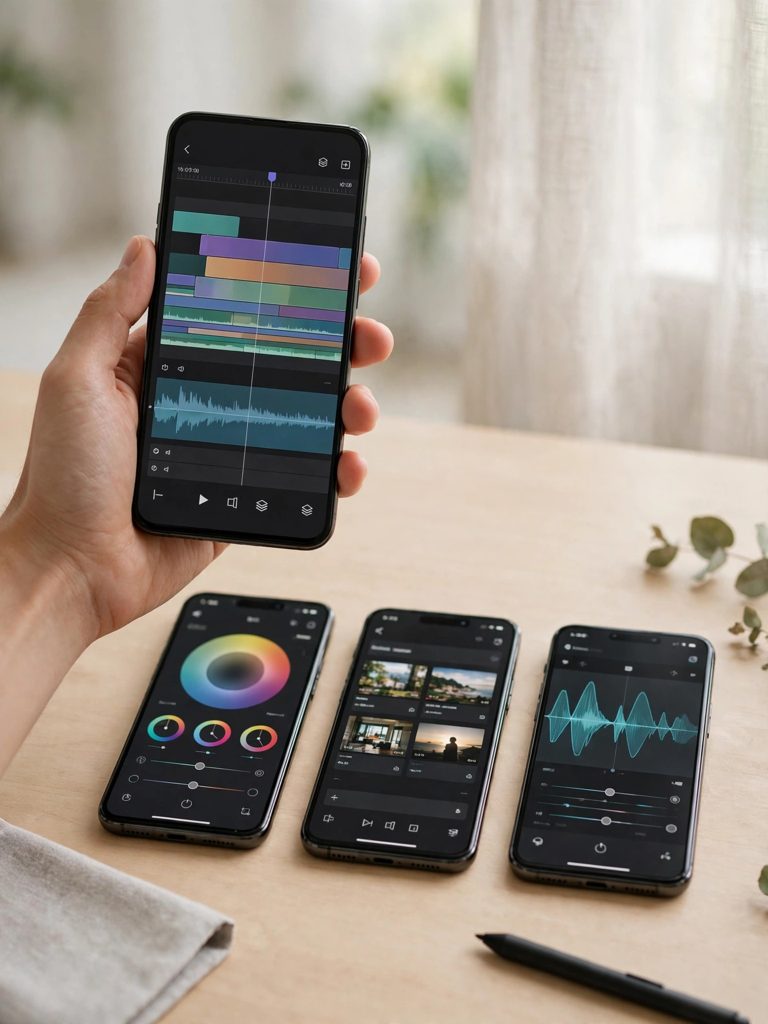
You’ve filmed a decent clip. Maybe it’s a transition, a funny moment, or a simple talking video. Now it sits in your gallery, unedited, because picking an editing app feels harder than filming the video itself.
Open any app store and you’ll find dozens of editors promising the same thing. Three names come up again and again for Reels and Shorts: CapCut, VN, and InShot. All three are free to download, all three work on a phone, and all three can cut a vertical video. So which one should you actually install?
This guide compares them properly — what each one does well, where each one falls short, and which type of creator each one fits. No hype, no fake promises. Just the practical differences that matter when you’re editing on your phone every day.
Quick Answer: Which Is the Best Free Video Editing App for Reels?
For most people making Reels and Shorts, CapCut is the best free video editing app for Reels. Its template library, auto captions, and beat-sync tools cover the things short-form creators need most, and you can finish a polished Reel without learning a full editing workflow.
That said, the best choice depends on how you edit. VN is the better pick if you like cutting clips manually and want a clean, distraction-free timeline with no watermark on free exports. InShot is the better pick if you want the fastest possible edit — trim a clip, add music and text, and post it within a few minutes.
If you only install one app, install CapCut. If you edit every day and want more control, keep VN next to it. InShot is worth keeping for quick jobs when you don’t want to open a heavier app.
CapCut: The All-Rounder for Reels and Shorts
CapCut is the most popular of the three for a simple reason: it was built around short-form video. Almost everything a Reel creator needs is already inside the app, and most of it works on the free plan.
What CapCut does well
Templates. This is CapCut’s biggest strength. You pick a template, drop in your clips or photos, and the app handles the cuts, effects, and timing. If you’re new to editing, templates let you publish something that looks finished on your first try. Our guide to CapCut Templates for Reels 2026 walks through the styles that work best for Reels.
Auto captions. CapCut can generate captions from your voice automatically, then let you style them and fix mistakes word by word. Captions matter more than most beginners realise — plenty of people watch Reels with the sound off, and captions keep them watching. Our step-by-step on AI captions in CapCut shows how to add and style them.
Beat sync and effects. Syncing cuts to music used to take ages. CapCut’s beat-sync tools and its huge effects library make it much quicker. If you’re making a dance Reel, a transition, or a montage set to a trending sound, this is where CapCut pulls ahead. See our guide on how to make a beat-sync video in CapCut for the full workflow.
A complete editor underneath. Templates get the attention, but CapCut is also a proper editor. You get multi-layer timeline editing, keyframes, speed curves, chroma key, masking, and a large library of filters, stickers, and sound effects. You can start with templates and grow into manual editing without switching apps.
Where CapCut falls short
Some features sit behind a paywall. CapCut’s free plan is generous, but certain premium effects, filters, templates, and cloud features need a paid plan. You’ll notice a small “Pro” badge on those items. You can make good Reels entirely for free, but you will keep bumping into locked items if you browse the effects library a lot.
It can feel busy. Because CapCut packs in so much, the interface has a lot going on. First-time users sometimes find the number of menus and options overwhelming. It gets easier after a few edits, but the learning curve is steeper than VN or InShot at the start.
Template results can look samey. When thousands of people use the same trending template, the results start to look alike. Templates are a great starting point, but if every Reel you post uses the same template as everyone else, your videos stop standing out. Use templates as a base, then change the clips, text, or timing to make it yours.
Who CapCut suits best
CapCut suits beginners, template users, and anyone who posts Reels regularly and wants captions, effects, and trending styles in one app. If you’re just starting out, this is where to begin. Our Android walkthrough on how to use a CapCut template on Android covers the basics if you’ve never opened a template before.
VN: The Clean Editor for People Who Like Control
VN (VlogNow) is the quiet favourite among creators who edit by hand. It doesn’t shout about templates or trending effects. Instead, it gives you a smooth, professional-feeling timeline and gets out of your way.
What VN does well
A clean, easy timeline. VN’s timeline is one of the easiest to use on a phone. Splitting, trimming, and rearranging clips feels natural, and the multi-track layout lets you stack video, text, and music without the screen getting cluttered. If you’ve ever felt lost in a busy editor, VN feels like a relief.
No watermark on free exports. This is a big deal. VN lets you export videos without a watermark on its free plan. For creators who care about a clean final video, that alone is a reason to keep VN installed.
Good manual tools. VN includes keyframes, speed curves, filters, transitions, and text tools that cover most editing jobs. It also handles music well, with simple tools for fading audio in and out and adjusting volume per clip. You can build a polished Reel entirely by hand, with no template in sight.
Simple to learn. VN doesn’t bury its tools in layers of menus. Most people can figure out the basics in one sitting, which makes it a good second app for beginners who want to move past templates and learn real editing.
Where VN falls short
Fewer templates and trending effects. VN has some templates, but its library is much smaller than CapCut’s, and it doesn’t chase every trending effect the way CapCut does. If your style depends on the latest viral template, VN will feel limited.
No built-in auto captions like CapCut’s. VN has text tools, but adding captions means typing them out or adding them clip by clip. That’s fine for short videos, but it takes noticeably longer than CapCut’s automatic captions if your Reel has a lot of talking.
Smaller effects library. VN covers the essentials well, but if you want flashy transitions, animated stickers, or a huge sound-effects library, you’ll find fewer options here.
Who VN suits best
VN suits creators who edit daily and prefer cutting clips themselves rather than using templates. It also suits anyone who wants watermark-free exports without paying, and anyone who finds CapCut’s interface too crowded. If you like the feeling of actually editing — trimming precisely, timing cuts to music by hand, building your own style — VN is the best free video editing app for Reels for you.
InShot: The Fastest Way to Finish a Simple Edit
InShot has been around longer than the other two, and it shows in the best way: it does simple things very well, with almost no learning curve.
What InShot does well
Speed. InShot is the fastest of the three for a basic edit. Open the app, pick a clip, trim it, add music and text, export. The whole thing can take a few minutes. When you just need to get a video posted, that speed matters.
Easy text, stickers, and music. InShot’s text and sticker tools are simple and reliable, and adding background music takes a couple of taps. It also handles canvas sizing well — if you filmed in the wrong ratio, InShot makes it easy to fit your clip into a vertical 9:16 frame with a blurred background or a coloured border.
Photo editing built in. Unlike the other two, InShot also works well as a photo editor. If your Reels mix photos and video — slideshows, before-and-after posts, photo dumps with music — InShot handles both in one place.
Where InShot falls short
Watermark on free exports. The free version of InShot adds its watermark to exported videos unless you pay to remove it. You can crop it out or cover it, but that’s an extra step every time, and it looks untidy. For creators posting daily, this is the app’s biggest drawback.
Limited advanced tools. InShot covers trimming, filters, speed, and basic effects, but it doesn’t go as deep as CapCut or VN on things like keyframes, masking, or speed curves. If your editing style grows more ambitious, you’ll outgrow InShot sooner.
Ads on the free plan. The free version shows ads, which interrupt the workflow. It’s a minor annoyance, but it adds up when you edit every day.
Who InShot suits best
InShot suits casual creators and anyone who edits occasionally rather than daily. It’s also a good choice if you mostly post simple clips — a trimmed video with music and a caption — and don’t need templates or advanced effects. For quick jobs, it’s still hard to beat.
CapCut vs VN vs InShot: Side-by-Side Comparison
| Feature | CapCut | VN | InShot |
|---|---|---|---|
| Best for | Templates, captions, trending Reels | Manual editing, clean timeline | Quick, simple edits |
| Templates | Large library, updated often | Small library | Basic templates |
| Auto captions | Yes, built in | No automatic captions | No automatic captions |
| Watermark on free export | No watermark on most free exports | No watermark | Watermark on free plan |
| Timeline | Multi-layer, feature-rich | Multi-layer, clean and simple | Single-track, very simple |
| Effects and filters | Very large library | Good essentials | Good basics |
| Speed controls | Speed curves, slow motion | Speed curves | Basic speed adjustment |
| Learning curve | Medium | Easy | Very easy |
| Ads on free plan | Minimal | Minimal | Yes, noticeable |
| Best for beginners | Yes | Yes | Yes |
| Best for daily editors | Yes | Yes | Less suited |
Keep in mind that all three apps update regularly, and free-plan details can change over time. If a feature matters to you — especially watermarks and what’s included for free — check the current version in the app store before you commit to one editor.
Which App Should You Pick?
The honest answer is that the best free video editing app for Reels depends on how you actually edit, not on which app has the longest feature list. Here’s a simple way to decide:
Pick CapCut if you’re a beginner, you love templates, you want auto captions, or you post Reels often and want one app that does almost everything. It’s the safest first choice, and it’s the one most Reel creators end up using daily. Once you’re comfortable, our CapCut slow motion template guide is a good next step for adding variety to your edits.
Pick VN if you prefer editing by hand, you want a clean timeline without clutter, and you want watermark-free exports without paying. VN is the best choice for creators building their own editing style rather than following templates.
Pick InShot if you edit occasionally, you want the fastest possible workflow, or you mix photos and video in your Reels. It’s the simplest of the three, and sometimes simple is exactly what you need.
Use two apps together. Plenty of creators do this, and it’s often the smartest setup. Edit the main video in VN for clean cuts, then finish it in CapCut for captions and trending effects. Or cut a quick clip in InShot, then polish it in CapCut. There’s no rule that says you can only use one editor. Install two, try both for a week, and keep the one you actually open every day.
One more thing to remember: the app doesn’t make the Reel. A good hook in the first seconds, clear captions, and a video that holds attention matter far more than which editor you used. Our guide on how to increase views on Reels covers the retention side — the part no editing app can do for you.
Common Mistakes When Picking a Free Editing App
Choosing based on features you’ll never use. A huge effects library sounds great, but if you only ever trim clips and add text, you’re better off with the simplest app that does those things well. Pick for your real workflow, not a wishlist.
Ignoring the watermark until export. Nothing is more annoying than finishing an edit and discovering a watermark across your video. Check the export settings and watermark rules before you spend time editing in a new app.
Using the same template as everyone else. Templates save time, but a Reel built entirely from a trending template looks like every other Reel using that template. Change something — your clips, your text, your timing — so the video feels like yours.
Forgetting captions. Many people watch Reels without sound. A Reel with no captions loses those viewers in the first second. Whichever app you choose, make captions part of your routine, not an afterthought.
Editing in the wrong ratio. Reels are vertical, 9:16. If you edit in landscape or square by mistake, your video will look small or cropped when posted. Set the canvas to 9:16 before you start editing, not after.
Over-editing. Beginners often add every effect, filter, and transition they can find. The result looks busy and distracts from the video itself. One or two effects, used well, look better than ten effects fighting for attention.
FAQ: Best Free Video Editing App for Reels
What is the best free video editing app for Reels?
CapCut is the best free video editing app for Reels for most creators, because it combines templates, auto captions, beat sync, and a full editor in one free app. VN is the better choice if you prefer manual editing and want watermark-free exports, while InShot is the fastest option for simple trims.
Is CapCut really free for Reels?
CapCut is free to download and use, and its free plan covers templates, captions, basic effects, and exporting without a watermark on most videos. Some premium effects, templates, and features need a paid plan, so you’ll see “Pro” badges on certain items — but you can make good Reels without paying.
Does VN add a watermark to exported videos?
No, VN exports videos without a watermark on its free plan. This is one of its biggest advantages over InShot, whose free plan adds a watermark, and it’s a key reason many daily editors keep VN installed.
Is InShot good for Instagram Reels?
InShot is good for simple Reels — trimming a clip, adding music and text, and posting quickly. Its free plan adds a watermark to exports, and it has fewer advanced tools than CapCut or VN, so it’s better suited to casual creators than to daily editors who need more control.
Which app is easiest for a complete beginner?
InShot is the easiest to learn, with the simplest interface of the three. CapCut takes a little longer to learn but rewards you with templates and auto captions, while VN sits in between — easy to learn, with more manual control than InShot. If you’re a complete beginner, start with CapCut or InShot and switch once you know what you need.
Can I use two editing apps for one Reel?
Yes, and many creators do. A common workflow is to cut the video in VN for precise, clean edits, then finish it in CapCut to add captions and effects. There’s no downside to combining apps as long as you export in good quality between steps and keep the final video in vertical 9:16.
Final Thoughts
There isn’t one perfect editing app — there’s the one that fits how you edit. CapCut is the best free video editing app for Reels for most people because it covers the most ground: templates for fast starts, auto captions for accessibility, and enough depth to grow into. VN is the best pick if you like editing by hand and want a clean, watermark-free result. InShot is the best pick if you want the quickest route from clip to posted Reel.
The smartest move is to try before you decide. Install CapCut and VN, edit your next three Reels — one in each app, then one using both together — and see which workflow you actually enjoy. The app you open every day without dreading it is the right one. Your editing style will grow with practice, and the app that grows with you is the one worth keeping.