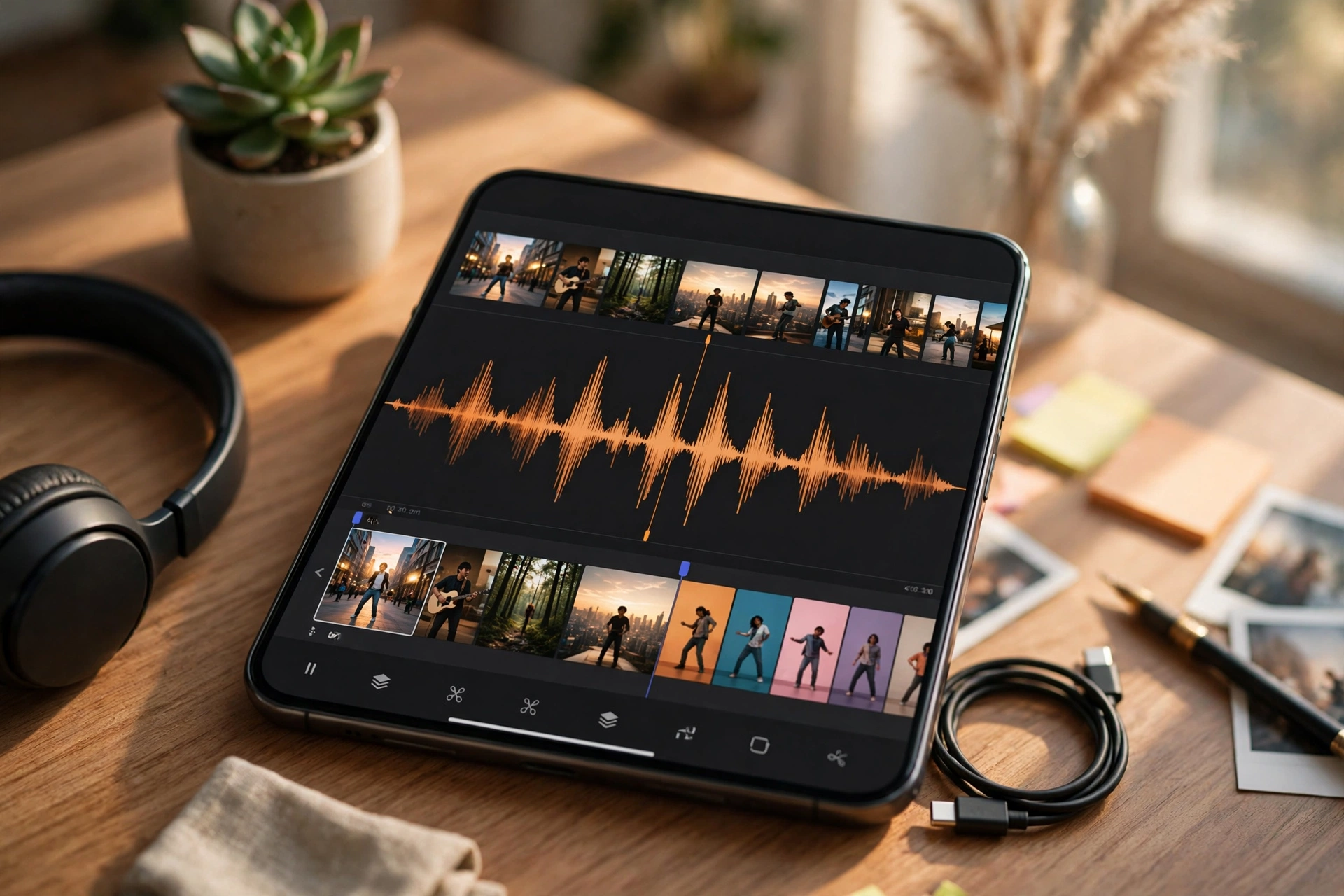
My first beat sync video looked good in my head and messy on screen. I had picked a fast song, added eight clips I liked, and hoped CapCut would somehow make them fit the music. It did not. Some clips changed too early, some changed too late, and the whole video felt like it was tripping over the beat instead of dancing with it. A friend watched it and said, in the kindest way possible, that the music and the video felt like two different videos playing at once.
That comment hurt a little, but it was right. I went back, listened to the song properly, marked the beats myself, and rebuilt the video clip by clip. The second version used the same clips and the same song, but it felt completely different. It felt intentional. That is what beat sync really is. It is not about adding more effects. It is about making the picture change exactly when the music tells it to.
In this guide, I will show you how to make a beat sync video in CapCut, step by step, in a way that works for Reels, Shorts, and TikTok. You do not need a professional editing background. You need a good song, a clear set of clips, and a little patience with the beat.
What is a beat sync video
A beat sync video is a short video where the clips change on the beat of the music. When the beat drops, the picture changes. When the rhythm builds, the cuts get faster. When the music pauses, the picture can pause too.
This works because our brains notice rhythm, even if we cannot explain it. When the cut lands on the beat, the video feels smooth. When the cut lands off the beat, even by half a second, the video feels awkward, even if the clips themselves are good.
Beat sync is different from simply adding music to a video. Adding music is easy. Syncing to it takes a few extra steps, but those steps are what make the difference between a slideshow with music and a video that feels edited.
Before you start: choose music and clips first
Do not start in CapCut with a random song and random clips. Start with these three choices.
First, choose a song with a clear beat. A song with a strong drum or bass line is much easier to sync than a soft song with no clear pulse. For your first beat sync video, pick a song you already know well, so you can feel where the beat lands without counting every second.
Second, choose clips that match the mood of the song. Fast music needs fast, bright clips. Slow music needs longer, calmer clips. I once tried to sync slow travel clips to a very fast song, and the result felt rushed and stressful. The clips were fine, the song was fine, but together they did not fit.
Third, keep your clip list short. For a 15 to 30 second Reel, 7 to 12 clips are usually enough. More clips do not make a video better. They make it harder to sync, and viewers have less time to enjoy any single clip.
Step by step: how to make a beat sync video in CapCut
Step 1: Start a new project and add your clips
Open CapCut and start a new project. Add your clips in the order you want them to appear. Do not worry about perfect timing yet. Just get the story order right. The first clip should be strong, because it is what viewers see first. The last clip should give a clear ending, not just stop suddenly.
If you are new to CapCut templates, our guide on how to use a CapCut template can help you understand the basic layout, even though this guide focuses on manual beat sync.
Step 2: Add your music
Tap Add Audio, then choose your music. You can use a sound from CapCut’s library, or import your own audio if you have the right to use it. After you add the music, listen to the whole song once, without editing. Tap your finger on the table each time you feel the main beat. That simple exercise will help you hear the pattern before you start cutting.
One important note for Reels: music that works inside CapCut may not always be available in the same way on Instagram. After you export, check the audio again on Reels, and be ready to choose a similar track inside Reels if needed. This saves you from a video that loses its rhythm after upload.
Step 3: Mark the beats
This is the step most beginners skip, and it is the step that matters most. In CapCut, tap on the audio track to select it, then look for the Beat option. When you play the music, you can tap to add a beat marker each time you hear the main beat. These markers become your cut points.
Do not try to mark every tiny sound. Mark only the main beats, the ones you naturally tap your foot to. For a fast song, that might be every half second. For a slower song, it might be every second. If you mark too many beats, your video will feel frantic. If you mark too few, it will feel slow.
I made this mistake early on. I marked every drum hit, every clap, and every extra sound, and my video ended up with 30 cuts in 20 seconds. Nobody could follow it. Now I mark only the beats I can feel without thinking too hard.
Step 4: Cut your clips on the beat markers
Now go back to your video track. Split each clip at a beat marker, so that a new clip starts exactly when a beat lands. In CapCut, select a clip, move the playhead to a beat marker, and use Split. Then trim the start or end of each clip so it lines up cleanly.
A useful rule: for fast music, keep clips short, around 0.5 to 1 second. For slower music, keep clips longer, around 1.5 to 2.5 seconds. These are guides, not strict rules, but they help you avoid clips that feel too long for the music or too short to understand.
Step 5: Adjust transitions, but keep them simple
Beat sync does not need a different transition on every cut. In fact, too many transitions can hide the beat. A simple cut on the beat often looks cleaner than a flashy transition that arrives late.
If you want a transition, use it at a key moment, such as the beat drop or the change from one scene to another. A quick zoom, a flash, or a simple cut works well there. Avoid using a long transition that crosses over the beat, because it will blur the exact moment you worked so hard to sync.
Step 6: Add text and effects on the beat, not over it
If you add text, let it appear on a beat, not in the middle of a beat. The same applies to a zoom effect or a sticker. When an effect starts on the beat, it feels part of the music. When it starts randomly, it feels like an accident.
Keep text short. One short line per section is enough. Viewers on a phone have very little time to read, and long text will distract from the beat you just synced so carefully.
Step 7: Preview with sound, then without sound
Play the full video with sound on, from start to finish, without stopping. Ask yourself: does every cut feel like it belongs to the music? If a cut feels early or late, adjust that one clip, not the whole video.
Then play it once with sound off. You should still be able to follow the story from the pictures alone. If the video only makes sense with music, add a little more visual clarity, such as a clearer first clip or a short text line at the start.
Step 8: Export in good quality and check the final video
Export at 1080p if that option is available. After export, open the video in your gallery and watch the first three seconds and the last three seconds separately. Mistakes often hide there, such as a black frame at the start, a clip that ends too abruptly, or a watermark you did not notice in the editor.
Save the exported video before you share it directly from CapCut. That way, if a platform changes the music or the caption, you still have your original version.
Common beat sync mistakes to avoid
Using too many clips is the most common mistake. A beat sync video is not a race to show everything you filmed. Choose fewer, stronger clips.
Ignoring the first beat is another mistake. If the first clip starts before the music starts, or long after it, the whole video feels off from the beginning. Line up the first clip with the first clear beat.
Forgetting the ending is also common. A video that just stops feels unfinished. End on a beat, with a final clip that feels like a conclusion, even if it is just a smile, a landscape, or a product shot held for a second longer.
Using music you do not have the right to use can also cause problems, especially on Reels and TikTok, where audio can be muted or replaced. Use music from the platform library, or music you are clearly allowed to use, and check the audio after upload.
How to choose a song for beat sync
A good beat sync song has three qualities. It has a clear, steady beat. It has a moment where the energy changes, such as a drop or a chorus, so you can build toward something. And it fits the mood of your clips.
If you are making a gym, dance, or fashion video, a faster song usually works. If you are making a travel, food, or emotional video, a slower song with a clear pulse usually works better. Do not choose a song just because it is trending. Choose a song that makes your clips feel better.
If you want to explore template styles first, our guide on CapCut templates for Reels can help you see which template types suit different moods, from photo slideshows to beat-drop styles.
A simple practice plan
Make your first beat sync video with only five clips and one song you know well. Mark only the main beats. Cut each clip on a beat. Export it and watch it twice. Then make a second version with the same clips, but change only the song. You will immediately feel how much the song changes the edit, even when the pictures stay the same.
After that, try a 20 second video with eight clips. This time, add one transition at the beat drop only. Keep everything else as simple cuts. You will learn more from these two small videos than from watching ten tutorials without practising.
Key takeaways
- Beat sync means cutting clips exactly on the main beat, not just adding music.
- Mark only the main beats in CapCut, not every small sound.
- Keep clips short for fast music and longer for slow music.
- Use simple cuts most of the time, and save transitions for key moments.
- Preview with sound and without sound before you export.
- Check the audio again after uploading to Reels, as music availability can change.
Final thoughts
Beat sync looks impressive, but it is really about listening. Listen to the song first, mark the beats, and then let the pictures follow the music. The first time will take a little longer, because you are learning to hear the beat as an editor, not just as a listener.
Once you get it, you will start noticing beat sync everywhere, in Reels, in ads, and in music videos. And you will also notice when it is off, which is a good sign. It means your eye and ear are learning to work together. Start small, keep your clips strong, and let the beat do the timing for you.
1 thought on “How to Make a Beat Sync Video in CapCut: A Step-by-Step Guide”