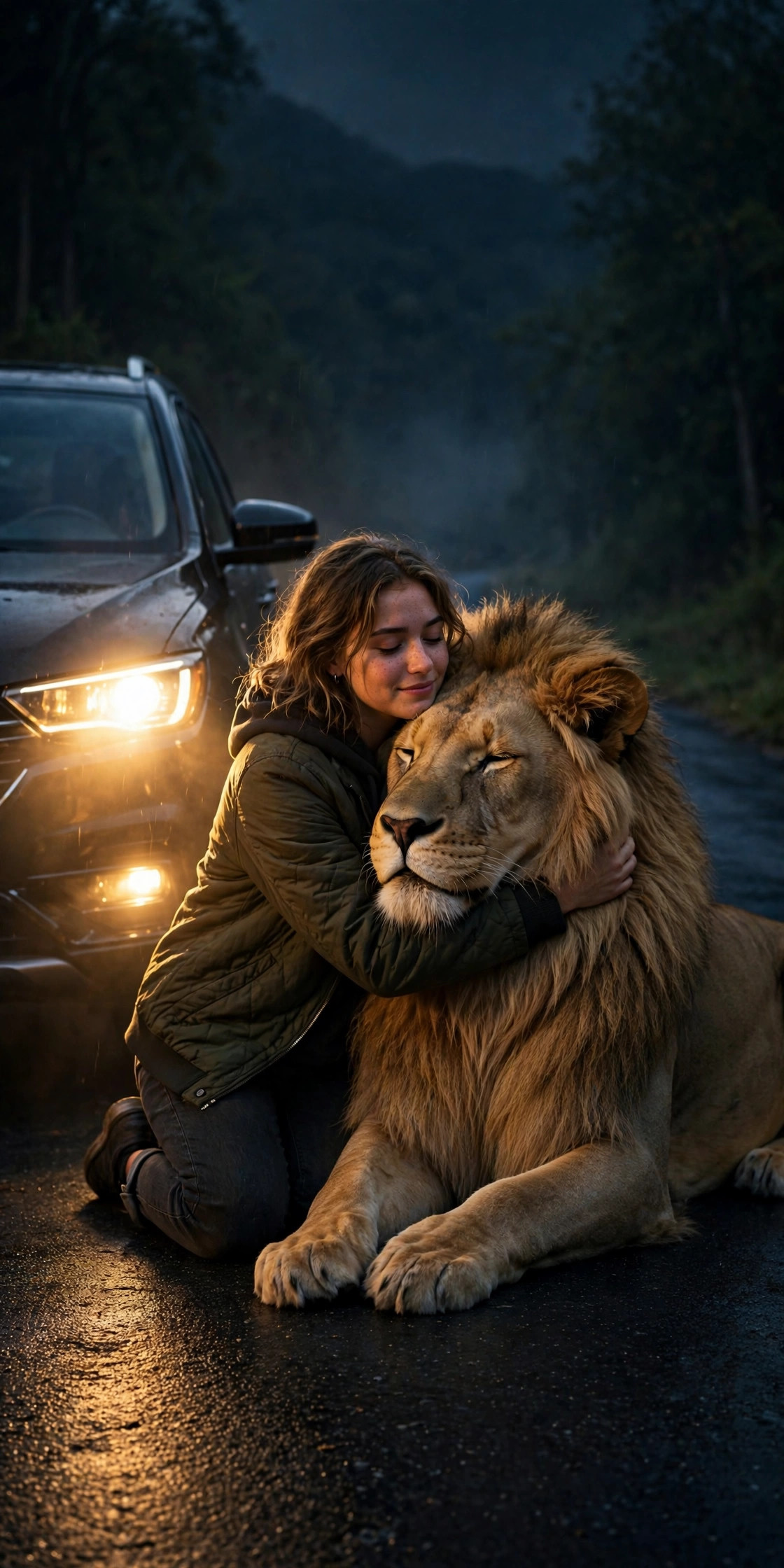
I first saw it at 1 a.m., which is when most bad decisions about my feed happen. A friend sent me a clip: a woman standing by her car on a dark road, headlights on, and a full-grown lion walking out of the darkness toward her. Instead of running, she knelt down, held its face in her hands, and hugged it like an old friend who had just come home.
My first thought was, “That can’t be real.” My second thought was, “I need to know how she made it.” Turns out the clip was AI-made from a single photo, and by the time I went looking, millions of people had already made their own version with the Lion Friend CapCut template. If your feed looks anything like mine, you have seen this lion too.
Here is the honest version of how it works, what I got wrong on my first try, and how to make a version that actually looks good instead of like a blurry fever dream.
What the Lion Friend CapCut template actually is
The Lion Friend CapCut template is a one-photo AI template. You give it one clear photo of yourself, and it turns that photo into a short vertical video, roughly ten seconds long, where a lion walks up to you on a dark road at night and you greet it like a friend.
The scene is always the same basic setup: night, a car, headlights, and a lion that behaves like a very large, very calm pet. What changes is you. The template swaps your photo into the scene, so the person in the video looks like you — same face, same outfit from the photo, same general build.
A few things worth knowing before you start:
- The lion is not real. The original clip that started the trend was AI-generated, and every template version is AI-generated too. Nobody is actually hugging a lion on a highway.
- You do not need to film anything. No camera, no tripod, no lion, obviously. One photo is the whole input.
- The result is short, around ten to twelve seconds, which is exactly the length that works for Reels, TikTok, and Shorts.
That simplicity is the whole reason it spread. Most AI video trends ask you to write a prompt, pick a model, or stitch clips together. This one asks for one photo and a tap.
Why this one took off when so many AI trends don’t
I have watched a lot of AI video trends come and go this year. Most of them die for the same reason: they take too long to make, or the result looks broken. The Lion Friend trend dodged both problems.
First, the emotion lands instantly. A lion walking toward a person should be scary. Watching the person hug it instead flips the whole scene in two seconds. People stop scrolling because their brain needs to resolve what it just saw. That is a hook, and it works without any text on screen.
Second, the template does the hard work. You are not prompting an AI from scratch and hoping it understands what a lion hug looks like. The template already knows the scene. Your photo just fills the lead role.
Third, it is personal. People do not share it because they love lions. They share it because it is them in the video. A friend of mine posted hers with the caption “me and my new best friend” and her comments turned into a whole thread of people asking how she did it. That is the loop: one person posts, ten people ask, ten more make their own.
I am not going to promise this will go viral for you. Nobody can promise that, and anyone who does is selling something. What I can say is that the format is proven, the barrier to making it is low, and the reaction it gets is usually strong — surprise, disbelief, and a lot of “wait, how?”
Before you start: pick the right photo
This is where I messed up my first attempt, so let me save you the trouble.
My first photo was a group picture from a wedding, cropped tight around my face. The template used it, but the result looked wrong — my face was fine, but the body proportions were off and the outfit kept changing halfway through the clip. I had given it a photo where I was half-turned, half in shadow, and standing behind someone else. The AI had to guess too much.
The second photo worked. Here is what made the difference:
- Face clearly visible, looking at the camera. A front-facing photo beats a side profile every time. The template maps your face onto the person in the scene, and it needs to actually see your face.
- Good lighting, no heavy shadows on the face. A daylight photo or a well-lit indoor photo works better than a dark restaurant selfie.
- Just you in the frame. Group photos confuse the template about who the main person is. Crop it to yourself before you start if you have to.
- Upper body visible, not just a headshot. The video shows you standing and kneeling, so a photo that includes your shoulders and torso gives the AI more to work with.
- A plain or simple background helps. It does not have to be a blank wall, but a busy crowd behind you makes the result messier.
If your first result looks off, change the photo before you blame the template. Nine times out of ten, the photo was the problem. I know, because my first result was genuinely strange and my second one was the one people actually believed for a second.
How to make the Lion Friend video in CapCut, step by step
You need the CapCut app on your phone and a CapCut account. The template lives inside CapCut’s template section, so you do not need a separate AI app for the basic version.
Step 1: Open CapCut and go to Templates. Open the app, tap the Templates tab at the bottom, and use the search bar at the top. Search for “Lion Friend” or “lion hug.” If the exact template does not show up in your region, try searching “lion friend” without caps, or “AI lion.” Template availability moves around, and the same scene sometimes appears under slightly different names from different creators.
Step 2: Pick the one-photo version. There are a few versions floating around. The one you want is the one-photo version — the one that says it needs a single photo and runs about ten to twelve seconds. Avoid the two-photo versions unless you specifically want a different scene; the classic Lion Friend clip is one photo.
Step 3: Tap “Use template” and add your photo. Tap the template, then tap “Use template.” CapCut will ask you to choose a photo. Pick the clear, front-facing photo you chose earlier. If the app crops it, adjust the crop so your face and shoulders stay in frame.
Step 4: Let it generate, then preview properly. Generation takes a minute or two. When it finishes, watch the whole clip with sound on, not just the first two seconds. Check the face, the hands, and the moment the lion reaches you — that is where glitches show up. If the face warps or the lion looks like it melts into your arm, regenerate with a different photo rather than posting a broken clip.
Step 5: Adjust the basics before you export. You can trim the start or end if there is a dead frame, and you can add text or a caption inside CapCut if you want. Keep it simple. A short caption like “my new best friend” works better than a paragraph explaining the video. The clip does the talking.
Step 6: Export in 1080p. Tap Export, choose 1080p if it is available, and save it to your phone. Do not export at a lower resolution to save time — a blurry lion hug looks fake in the wrong way, and people will scroll past instead of stopping.
Step 7: Post it as a Reel, TikTok, or Short. Upload the exported video to whichever platform your audience is on. Post it vertical, full screen, with no black bars. Add a caption that invites a reaction — a question works well, like “Would you hug him or run?” — and use a few relevant hashtags, not thirty.
Mistakes that ruin a Lion Friend video
I made most of these, so consider this the shortcut past my own learning curve.
Using a blurry or old photo. The template can only work with what you give it. A low-resolution photo from five years ago produces a low-resolution face in the video, and the mismatch is obvious next to the sharp lion.
Posting the first generation without watching it. AI clips glitch. Hands merge, faces shift, the lion sometimes walks through the car door. Watch the full ten seconds before you post. If something looks wrong, it will look wrong to everyone else too, just bigger.
Adding too much on top. Heavy filters, stickers, flashing text, and a loud trending song all at once bury the actual moment. The clip is already dramatic. Let it breathe.
Pretending it is real. This matters more than people think. The original clip was rated AI-generated, and viewers are good at spotting AI now. If you post it as if you actually hugged a lion, you will get called out, and the comments will turn into an argument instead of a conversation. A simple “AI fun” note or a laughing caption keeps it honest and keeps the comments friendly.
Copying someone else’s caption word for word. The format is shared; your post does not have to be identical. A small personal twist — your own caption, your own reaction in the text — is what makes your version feel like yours instead of the ten-thousandth copy.
How to make your version stand out
Since millions of people have used the same template, the question is not how to make the video. It is how to make yours worth stopping for.
The easiest lever is the caption and the first second. The video starts on a dark road, which looks similar in every version. A caption that sets up a personal joke or a question gives people a reason to watch past the first frame. “POV: you finally meet your childhood best friend” hits differently than no caption at all.
The second lever is the photo itself. Most people use a normal selfie. Using a photo in an outfit that contrasts with the scene — a formal outfit, a sports kit, something unexpected — makes the clip feel more like a story and less like a copy. Just keep the face clear; the outfit can be fun, the face needs to be readable.
The third lever is what you post next. One Lion Friend video is a fun post. A follow-up — your reaction to the comments, a behind-the-scenes of picking the photo, or your attempt with a different photo — turns a one-off into a small series, and series hold attention longer than singles.
Is the Lion Friend CapCut template free?
The template itself is free to use inside CapCut, in the usual way templates work: you use the template, CapCut generates the clip, and you export it. Some versions and some export options in CapCut require a Pro subscription, and that varies by region and by template, so check before you start if you are avoiding paid features.
There are also separate AI tools that make the same scene from a photo in a browser, and those usually charge credits per video. You do not need them for the CapCut version. If a site asks you to pay before you have even seen a preview, you are probably on a different tool, not the CapCut template.
One more practical note: the free version may add a CapCut watermark or outro depending on your app version and settings. If that bothers you, check the export screen for the option to remove it, or trim the last frame in your phone’s editor after export.
Frequently asked questions
How long is the Lion Friend video? Around ten to twelve seconds, depending on the exact template version. That is the full clip — there is no longer cut hiding inside the template.
Do I need more than one photo? No, for the classic Lion Friend template you need one photo. If a template asks for two photos, it is a different scene, not the one-photo lion hug.
Why does my lion look weird? Almost always the photo. Try a brighter, front-facing, single-person photo with your upper body visible, and regenerate. If it still looks off, try a different template version of the same scene.
Can I use it for TikTok and YouTube Shorts too? Yes. It exports as a vertical video, so it works on Reels, TikTok, and Shorts. Just re-upload the exported file to each platform rather than screen-recording someone else’s post.
Is it safe to post? It is an AI-generated clip of yourself, so the usual common sense applies: use your own photo, do not put someone else’s face in it without their permission, and do not present it as a real event. Label it as AI fun if your audience might take it seriously.
Will this exact template still be available next month? Templates come and go, and popular ones sometimes get removed or replaced. If you cannot find the exact Lion Friend template, search for the same scene under “lion hug” or “AI lion” — the scene itself keeps reappearing under new template names.
Final thoughts
The Lion Friend trend is a good reminder of why simple formats win. One photo, one surprising scene, ten seconds. No filming, no prompt engineering, no editing skills required.
My first attempt was a mess because I rushed it with a bad photo. My second attempt was the one people actually reacted to, and the only difference was slowing down for thirty seconds to pick a proper photo and watch the full preview before posting. That is really the whole secret here: the template does the magic, but you still have to give it something decent to work with and check the result before you share it.
If you make one, have fun with it. Post it, enjoy the comments, and do not take the lion too seriously. He is not real, but the reactions are.
1 thought on “Lion Friend CapCut Template: How to Make the One-Photo AI Hug Video Everyone Is Posting”