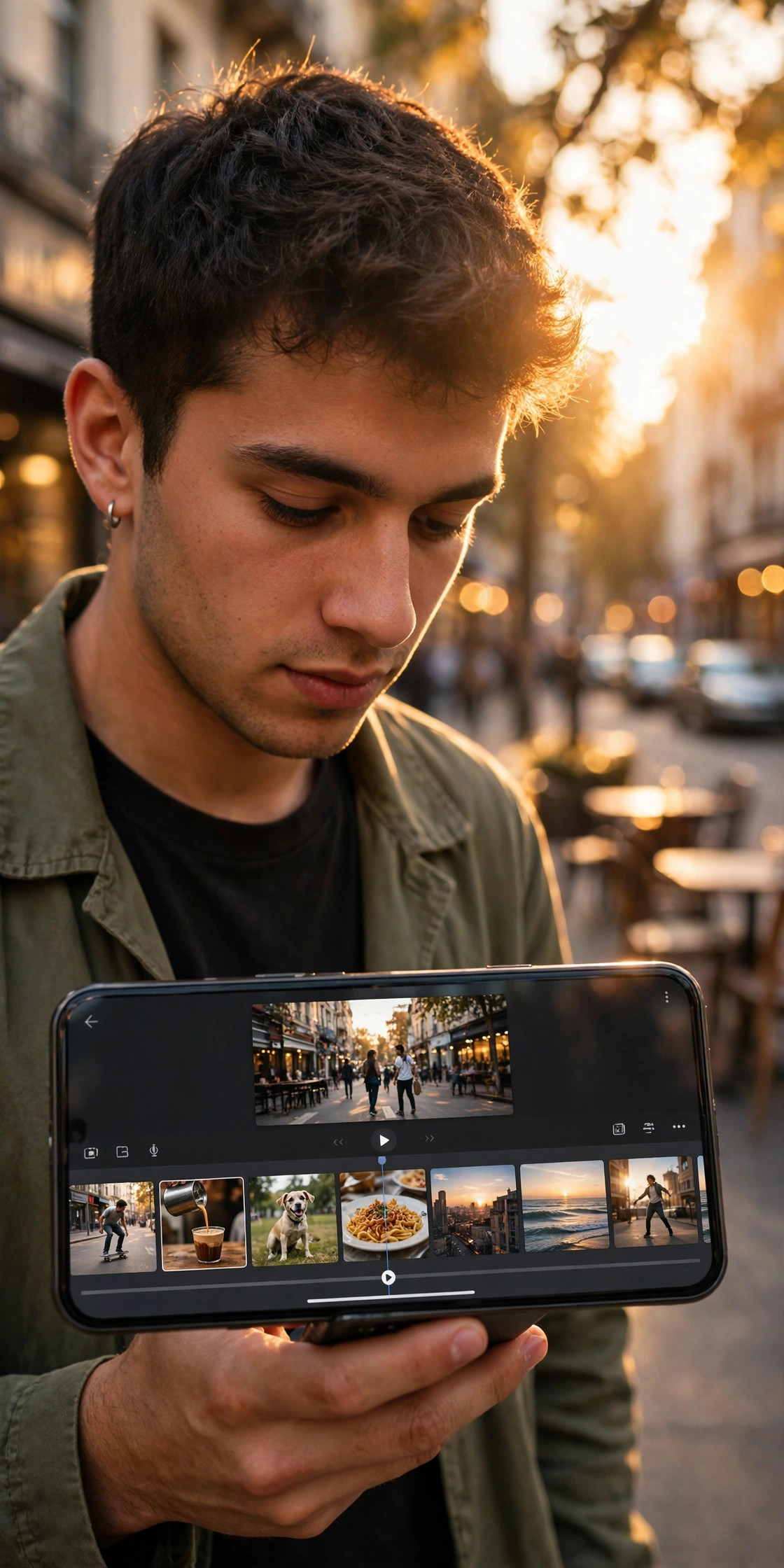
I had seven decent clips sitting in my camera roll and no plan for them. A walk to the market, a cup of chai steaming on a stall table, my friend laughing mid-sentence, a sunset that looked better on my phone than it did in real life, a rickshaw passing too fast, a cat that refused to move, and one shaky shot of the street lights coming on. On their own, none of them was worth a post. Together, though, they had a rhythm I could feel, if only I could cut them in the right order.
That is exactly the problem the 7 CLIPS CapCut template solves. It is not a magic button, and it will not make a dull set of clips interesting. What it does is give seven short clips a tight, beat-led structure, so the edit feels fast and finished instead of random. I tried it the slow way first, then with the template, and the difference was obvious: my manual version dragged, the template version landed.
Here is how to use the 7 CLIPS CapCut template properly, what to watch out for, and how to make the result look like yours rather than like everybody else’s copy.
What the 7 CLIPS CapCut Template Actually Is
The 7 CLIPS CapCut template is a ready-made edit built around seven short clips. The cuts are timed to the beat, so each clip changes just as the music hits. The transitions are sharp rather than soft, which keeps the pace up and stops the viewer drifting off halfway through.
It works for almost any kind of footage. I have seen it used for outfit checks, travel dumps, car edits, food runs, and plain everyday montages. The reason is simple: seven clips is enough to tell a tiny story, but short enough that nobody gets bored. You get a beginning, a middle, and a payoff, all inside a few seconds.
One honest note before you start. Template availability can vary by region, app version, and account. If you cannot find this exact template name in your CapCut app, search for it in the Templates tab, or use a similar seven-clip beat-sync template and follow the same clip-order rules below. The structure matters more than the exact template name.
A template also does not guarantee views. A clean edit helps retention, but the clips themselves, the first second, and the sound still do the heavy lifting. Treat this as a tool, not a promise.
Before You Open CapCut: Pick Your Seven Clips
This step decides whether the Reel works. I made my first 7 CLIPS edit with the first seven videos I found, and it looked messy. The lighting jumped, the subjects changed for no reason, and the beat landed on a blurry frame. The second time, I spent five minutes choosing, and the same template suddenly looked twice as good.
Use this quick checklist:
- One clear subject per clip. A face, a plate of food, a street scene, a car — not three things fighting for attention.
- Similar lighting where you can. Mixing harsh noon sun with dark night shots makes every cut feel like a jump.
- Movement in most clips. Walking, pouring, turning, laughing. A still-feeling clip in the middle kills the pace.
- Your best clip last, or second last. Save the payoff. If the strongest shot comes first, everything after it feels like a letdown.
- Shoot a little extra. If a clip is only two seconds long, you have nothing to trim. Aim for three to five seconds of usable footage per clip, even if the template only uses part of it.
My order that finally worked was: street walk, chai pour, friend laughing, sunset, rickshaw passing, cat sitting still (a one-beat pause that actually helped), then the street lights coming on as the payoff. The cat clip was my mistake-turned-lesson — a quiet beat in the middle gives the fast cuts around it more punch.
How to Use the 7 CLIPS CapCut Template, Step by Step
Step 1: Update CapCut and find the template
Open CapCut and make sure it is updated. Old versions sometimes fail to load newer templates, and you will waste ten minutes wondering why the preview is blank.
Tap the Templates tab, then search for “7 CLIPS”. Look at the preview before you commit. Check the clip count — it should be seven — and check whether it uses photos, videos, or both. Some versions of this style of template accept photos, some want video clips. Pick the one that matches what you actually have.
If the template does not appear in your region, do not download a random file from an unknown site to get it. Search inside CapCut for a similar seven-clip beat-sync template instead. Your account and your phone will thank you.
Step 2: Add your seven clips in story order
Tap Use Template, then select your clips in the order you want them to appear. This is not the time to sort by date or by whatever order your gallery shows. Think like a tiny story:
- The hook — the shot that makes someone stop scrolling
- The setup — where you are, or what you are doing
- A detail — a close-up, a hand, a face, a texture
- Energy — movement, a turn, a laugh, a fast pan
- A breather — one slightly calmer clip, so the pace does not blur
- The build — the moment just before the payoff
- The payoff — your strongest shot, held just long enough to land
Tap Next and let CapCut place the clips on the beat. Watch the preview twice: once for the overall feel, once just watching the cuts. If a cut lands on a blink, a blur, or an empty frame, note which clip number it is. You will fix it in the next step.
Step 3: Nudge the cuts so the beat actually lands
Templates do the timing for you, but they cannot see your footage. If clip four starts half a second too late, the beat hits on a dull frame and the whole edit feels slightly off.
In the editor, tap the clip that feels wrong and trim its start point. Move it a fraction earlier or later until the main action — the step, the pour, the laugh — lands on the beat. You only need to fix one or two clips. I usually fix the first clip and the payoff clip, and leave the rest alone.
Also check the audio. If the template’s sound is not available in your region, or Instagram mutes it, swap in a similar trending sound from Instagram’s own music library before you export. A Reel with no sound, or with a sound that gets removed, loses half its effect.
Step 4: Make it yours, not a carbon copy
This is where most template Reels fail. Everybody uses the same transitions, the same text style, and the same filter, so the feed fills up with identical edits.
Change at least three things:
- Text: Replace any placeholder text completely, including the font and position if CapCut lets you. Your own words, in your own style, change the whole feel.
- Colour: If the template leans warm, try a slightly cooler grade, or vice versa. Do not overdo it — one small shift is enough.
- One manual touch: Add a single zoom, a speed ramp on the payoff clip, or a short caption at the start. One personal choice is enough to break the copy-paste look.
Keep the changes small. The template’s pace is the point. If you rebuild half of it manually, you might as well have edited from scratch.
Step 5: Export in 9:16, then check it on your phone
Export at 1080p, in 9:16 vertical format. That is the size Instagram Reels is built for, and it keeps your clips sharp without making the file huge.
Before you post, watch the exported video on your phone, not just inside CapCut. Check three things: is the first second clear, does the payoff clip look sharp, and is the sound actually audible? I once posted a version where the music was so low I could barely hear it on my phone speaker. It looked fine in the editor and flat everywhere else.
If the video looks washed out, go back and check your original clips rather than adding a heavy filter on top. A filter cannot rescue a badly exposed clip, and it usually makes the good clips look worse too.
Common Mistakes With the 7 CLIPS CapCut Template
Using seven random clips. The template gives you structure, not a story. If the clips have nothing in common, the edit will feel random no matter how tight the cuts are.
Putting the best clip first. It feels tempting, because you want the hook. But then clips two to seven all feel weaker. Use a strong hook first, yes — but save your single best shot for the end.
Ignoring the sound. Beat-sync templates live or die by the beat. If the audio is muted, replaced by something with a different tempo, or too quiet, the cuts will look mistimed even when they are not.
Over-editing after the template. Adding five effects, three text animations, and a sticker pack on top of a beat-sync template turns a clean edit into noise. One or two personal touches, then stop.
Posting the preview instead of the export. The preview inside CapCut can look smoother than the exported file. Always watch the exported version before you post.
What Kind of Reel Works Best With Seven Clips?
Short answer: anything with a clear before-and-after, a day in miniature, or a single outing.
A morning routine works because it has a natural order. A market trip works because the clips build: leaving, arriving, choosing, paying, walking home with the bag. An outfit Reel works because each clip can show a different angle, then the final clip shows the full look.
What does not work as well is seven clips from seven different days with no link between them. The viewer spends the whole Reel trying to work out what connects them, and by the time they guess, the video is over.
If your seven clips do not hang together, pick a different set. It is faster to reshoot one afternoon walk than to force a story out of unrelated footage.
7 CLIPS vs Other CapCut Templates: When to Use It
If you have already tried a slow-motion template, you know the feeling is completely different. Slow motion stretches a moment; the 7 CLIPS template compresses seven moments into one fast run. Use slow motion when one shot deserves all the attention. Use seven clips when the variety is the point.
A photo-transition template is also different. That style is about how one photo becomes the next. The 7 CLIPS template is about rhythm — the cuts matter more than the transitions between them. And a cinematic template leans on colour and mood, while this one leans on pace.
In practice, I reach for the 7 CLIPS template when I have a lot of short, decent clips and no single hero shot. If I have one great shot, I build around that instead.
FAQ
How many clips does the 7 CLIPS CapCut template need? Seven. That is the structure of the template: seven short clips cut to the beat. If you only have five good clips, either shoot two more or choose a different template. Forcing the same clip in twice usually looks like a mistake.
Can I use photos instead of videos in the 7 CLIPS CapCut template? It depends on the version you find in CapCut. Some seven-clip templates accept photos, some are built for video clips. Check the preview and the slot requirements before you add your media. If it wants video and you only have photos, a photo-transition template will suit you better.
Why does my 7 CLIPS edit look jerky? Usually one of three things: a clip that starts on a blurry or empty frame, a beat that lands on the wrong moment, or clips with wildly different lighting. Trim the start of the jerky clip, nudge it to the beat, and check that the clips around it are not jumping from bright daylight to darkness.
What size should I export a 7 CLIPS Reel in? Export in 9:16 vertical, at 1080p. That fits Instagram Reels and YouTube Shorts without black bars or cropping, and it keeps the file quality high without being unnecessarily large.
Will the 7 CLIPS CapCut template make my Reel go viral? No template can promise that. A tight, well-chosen seven-clip edit can help people watch to the end, which helps, but the clips, the hook, and the sound matter just as much. Use the template to make a good edit, not as a guarantee.
What if the 7 CLIPS template is not available in my country? Template availability varies by region and app version. Search CapCut’s Templates tab for a similar seven-clip beat-sync template, or use the same clip-order rules in a manual edit: hook, setup, detail, energy, breather, build, payoff. The structure works even without the exact template.
Final Thoughts
My camera roll is still full of stray clips. The difference now is that I know what to do with seven of them. I pick a tiny story, I put the payoff last, I let the beat do the pacing, and I change just enough to make the edit mine.
Try it with clips you already have. Do not wait for a perfect day out or perfect lighting. Seven honest clips from an ordinary afternoon, cut tightly and in the right order, will look better than seven perfect clips thrown together at random. That is the whole trick of the 7 CLIPS CapCut template — it is not about having better footage, it is about giving the footage you already have a shape.
1 thought on “7 CLIPS CapCut Template: How to Make the Seven-Clip Beat-Sync Reel Everyone Is Posting in November 2026”